
This blog post has been a long time coming—I originally intended to write it after the Sitecore Hackathon 2024 earlier in the summer, but better late than never! Earlier this year, I partnered with Amit Kumar for the Sitecore Hackathon 2024, and we decided to tackle the “Best Use of AI” category.
After a few hours of brainstorming, we came up with the idea of developing a chatbot using Microsoft Azure OpenAI for websites powered by Sitecore XM Cloud.

We decided to leverage the PLAY! Summit website and designed our chatbot around event session data. The use case we envisioned was as follows:
As an attendee to the PLAY! Summit, I want to interactively search for the events based upon my interests. For example:
– When is the opening note session and what is it about?
– Recommend me some sessions about Outdoor Adventure!
– I cannot decide between a cycling and outdoor survival session, help me choose!
Amit Kumar wrote a detailed blog post about the whole process earlier this year, I am only going to mention the Microsoft Azure OpenAI part of the submission. We wanted to call this “Co-pilot for XM Cloud”.
Architecture
The infrastructure setup and data flow between the PLAY! Summit website user and the Azure OpenAI work as follows:
1- We will set up Azure AI Search and Azure OpenAI with our event session data.
2- The user sends input via chat interface, such as “When is the opening keynote session?”
3- This information is passed to Azure AI Search.
4- The Azure AI Search returns the response from the index.
5- The response plus the chat input (prompt) is then passed to the Azure OpenAI model.
6- The Azure OpenAI model returns the Gen AI-generated response.
7- This Gen AI response is returned to the user in the web UI interface.
The following diagram shows the overall architecture of the project:

The rest of the blog post is about setting up Azure AI Search and Azure OpenAI with the PLAY! Summit’s session data.
Azure AI Search
The first step is to provision Azure AI Search (formerly Azure Cognitive Search) via the Azure Portal. You can follow Microsoft’s official article for detailed, step-by-step instructions. We provisioned the Basic Tier in the US East region for our Hackathon project. Once the service was set up, we created a custom session index. To do this, navigate to your Azure AI Search instance, and from the top menu, select ‘Add Index (JSON).’

Then, paste the following schema into the JSON window:
{
    "name": "sessions",
    "fields": [
      { "name": "ID", "type": "Edm.String", "key": true, "filterable": true },
      { "name": "Name", "type": "Edm.String", "searchable": true, "filterable": true, "sortable": true, "facetable": false },
      { "name": "Description", "type": "Edm.String", "searchable": true, "filterable": true, "sortable": false, "facetable": false  },
      { "name": "Type", "type": "Edm.String", "searchable": true, "filterable": true, "sortable": false, "facetable": false },
      { "name": "Rooms", "type": "Edm.String", "searchable": true, "filterable": true, "sortable": false, "facetable": false },
      { "name": "Speakers", "type": "Edm.String", "searchable": true, "filterable": false, "sortable": false, "facetable": false },
      { "name": "Day", "type": "Edm.String", "searchable": true, "filterable": false, "sortable": false, "facetable": false },
      { "name": "Timeslots", "type": "Edm.String", "searchable": true, "filterable": true, "sortable": false, "facetable": false },
      { "name": "Audience", "type": "Edm.String", "searchable": true, "filterable": true, "sortable": false, "facetable": false },
      { "name": "Vendors", "type": "Edm.String", "searchable": true, "filterable": false, "sortable": false, "facetable": false },
      { "name": "Sponsors", "type": "Edm.String", "searchable": true, "filterable": false, "sortable": false, "facetable": false }
   ]
}
Here’s the schema file gist for quick reference. After adding the index, the next step is to upload the ‘sessions’ data from the PLAY! Summit to Azure AI Search. We used Sitecore PowerShell to export the data in JSON format and utilized the Postman API tool to upload it to Azure AI Search. You can find detailed instructions for the POST requests in the official documentation.

We uploaded 25 sessions, here is the data file for quick reference. This data upload process can be automated for production scenarios.
Azure OpenAI Studio
Next, we provisioned a Microsoft Azure OpenAI resource through the Azure Portal. You can follow Microsoft’s official guide for step-by-step instructions on how to set it up. After provisioning, navigate to the ‘Models’ section and select a model to deploy. (You can deploy the GPT-4 model with the Standard type selected for deployment, but this may change in the future, so be sure to review the latest official documentation to choose the appropriate model.)
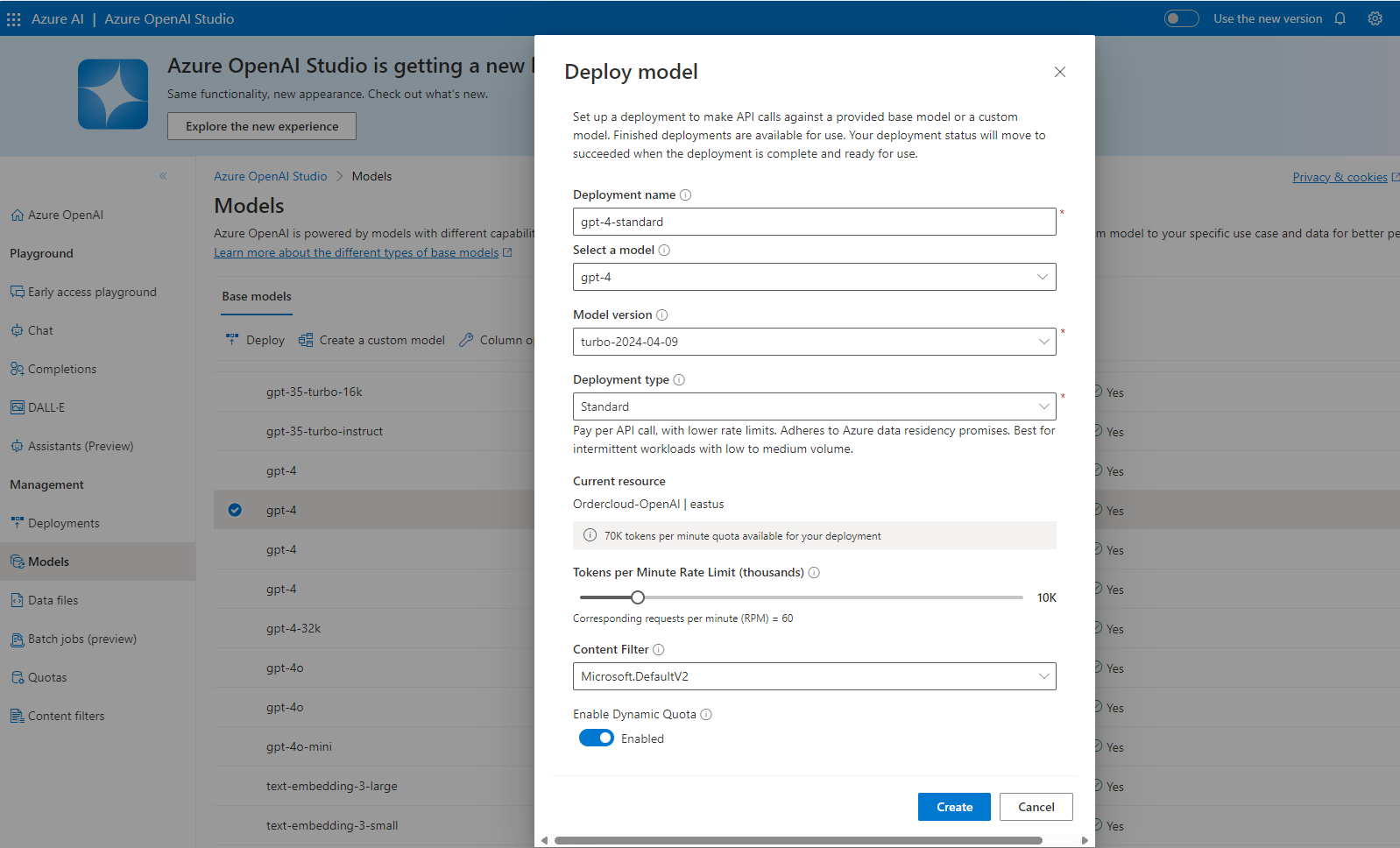
Once the model is deployed, you can test it with basic commands like “Hello” and “Who is the founder of Microsoft?” from the Playground > Chat interface.

Connect Your Data
The final step was connecting our custom data from Azure AI Search to Azure OpenAI and testing it in the chat playground. To do this, click ‘Add your data‘ and follow the wizard’s prompts. Select “Azure AI Search” from the drop-down menu, then choose your subscription, Azure AI Search instance, and the specific search index.

Map the fields of the index as following:

Follow rest of the wizard and enter the information. Once it is connected, you can test for the commands like ‘Recommend me some sessions about outdoor adventure” and check out the results.
TL/DR;
Here is a short video of the final output in the Azure OpenAI chat playground.
Local XM Cloud (PLAY! Summit)
With everything working as expected, the next step in our project was to set up a local instance of the PLAY! Summit website, based upon XM Cloud repository, and develop a chat interface that could interact with Azure AI Search and Azure OpenAI. Once the local configuration was complete, we created a custom page within XM Cloud and built a chat wrapper interface. (See the final output below):

The code for the XM Cloud chat interface page shown above was submitted as part of our Sitecore Hackathon 2024 project and is available in the GitHub repository for reference. Replace the endpoints and keys with your own to get it up and running.
Final Thoughts
In just 24 hours, we gained valuable insights and expanded our knowledge and skills in Gen AI, Azure OpenAI, and XM Cloud. We figured out how Azure OpenAI can be extended and connected with our custom data and how we can enhance our customers’ experience. The Sitecore Hackathon offered an excellent opportunity to connect with the broader community, and we had a fantastic experience throughout the event.
Thank you!
References
- https://sitecorehackathon.org/sitecore-hackathon-2024/
- https://enlightenwithamit.hashnode.dev/
- https://www.sitecore.com/products/xm-cloud
- https://github.com/Sitecore/Sitecore.Demo.XmCloud.PlaySummit
- https://enlightenwithamit.hashnode.dev/exploring-the-future-innovating-with-gen-ai-in-sitecore-hackathon-2024
- https://azure.microsoft.com/en-us/products/ai-services/ai-search
- https://learn.microsoft.com/en-us/azure/search/search-create-service-portal
- https://gist.github.com/naveed-ahmad-biz/ed4e3d5530df8c5f39428956522e7730
- https://gist.github.com/naveed-ahmad-biz/45d5b48538d86b9ac19ef6573ac7ef8e
- https://learn.microsoft.com/en-us/azure/ai-services/openai/how-to/create-resource?pivots=web-portal
- https://github.com/Sitecore-Hackathon/2024-Sitecore-Xplorers
 Naveed's Blog